Burke County ITFs have developed a Tech Tools page that has tons of resources for instructional technology. You can search by device (computer/iPad), subject, grade level, and purpose. There's also a feature in the top right corner to suggest a tool and have it added to the page. There are over 90 resources currently and it will continue to be updated as new tools are found or submitted. I hope you find this useful when searching for appropriate tools for instruction and please share with your colleagues.
This blog is to preview/review apps and websites that are for educational purposes. Teachers, Media Coordinators, and Instructional Staff will hopefully find this blog interesting and helpful.
Sunday, April 30, 2017
Thursday, April 13, 2017
Best Free Sites to Create and Share Audio
#Clyp, #Vocaroo, & #AudioPal
There are some great sites to use for recording audio and can be implemented in the classroom for many purposes. Clyp does not require an account and will save the file for 24 hours and can be shared with a link. You can create a free account with an email and files are saved and can be shared by link anytime. There's also an App for IOS devices.
Vocaroo is another site that doesn't require an account and is super easy to use. Just go to the site, click to record, and allow microphone, and you're recording! When finished, click to save, and there are several options to share including a link, Twitter, Facebook, Email, Google+, and many more. An excellent feature Vocaroo has added is making your recording into a QR Code with a click. Under the sharing options, you can click QR Code and it immediately creates your audio file into a QR Code. Love it!
Last, but not least, is AudioPal. It's another wonderful tool to record audio for a website or blog. You can record by microphone, text to speech, audio file, or even phone. The text to speech feature is great and you can choose the voice by male/female, and accent by country. Once you've previewed your message, enter your email and address and your file will be sent to you and you can embed your audio anywhere online and your message appears instantly.
Check this out:
Thursday, April 6, 2017
Quizalize- Formative Assessment Tool
Quizalize
Have you heard of #Quizalize? It's a great formative assessment tool similar to others like Kahoot, Quizziz, etc. There are over 20,000 pre-made assessments or you can easily create your own in minutes. Quizzes can be assigned as homework or in class as a team game. One stand out difference for Quizalize, is their new Team Game View. Students compete against the computer in a live basketball game with famous stars like Michael Jordan, etc. On the left side, students see a player with their name, and on the right side is the famous player. If the student gets the answer right, the ball goes in the basket and they score. If they get the answer wrong, the famous player scores. There can be several students playing at the same time and viewing the game on the Smartboard.
It is self paced but still offers a competitive feature that students really enjoy.
Monday, April 3, 2017
Reading Bear
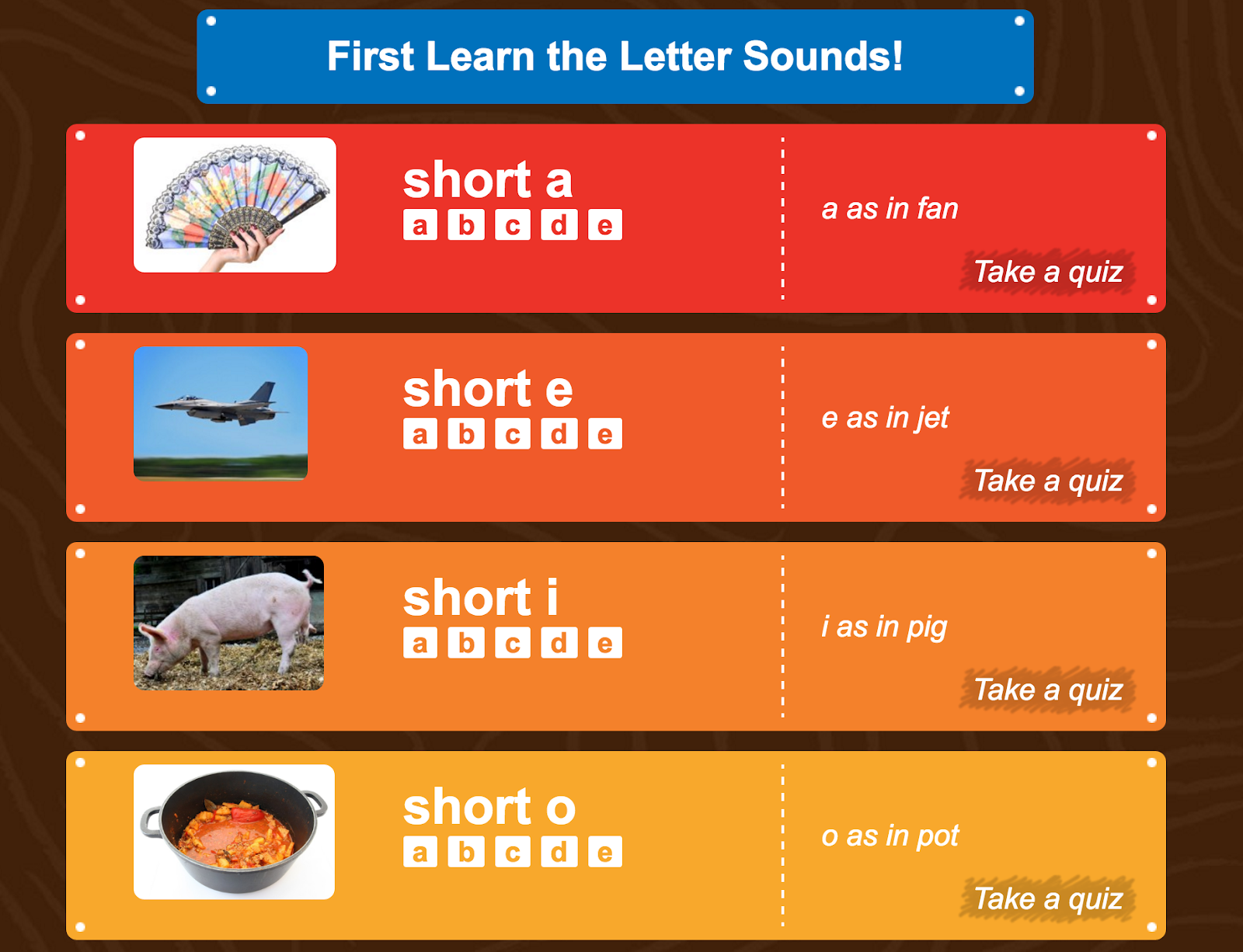
Reading Bear is a free online program that introduces letter sounds and phonetic patterns. There are 50 presentations with over 1200 vocabulary items. Each presentation can be played as a video or a slideshow introducing one to several phonics rules. Settings can be chosen for several features including pronunciation from slow to fast, audio/silent flashcards, and audio/silent sentences. The program is geared toward ages 4-7 but, can be used below and above depending on needs. Flashcards are available in PDF for download. Another great feature is subaccounts. After you register as a teacher, you can add subaccounts for your students so their data from quizzes will be stored in your account. I really like his site for beginning or struggling readers.
Thursday, March 30, 2017
Google Suite Training Center/Extension
This was formerly called Training for Google Apps. This site gives you access to interactive, self-paced lessons designed to help you with each of the Google products/apps. G Suite Training (formerly Google Apps) also has an extension in the Chrome Web Store. This will allow easy access when a simple, quick lesson is needed on any of their products. You never have to leave the app to learn how to use it whether you're in Docs, Sheets, Slides, Calendar, or Gmail. It's easy to search within the app for a quick tutorial:
Friday, March 24, 2017
How to Differentiate and "Add Sections" in Google Forms
Using Google Forms in Quiz Form with Sections
I've had a lot of teachers ask how to use #Google Forms as a quiz and add a section based on the student response. For example, if you want to give a multiple choice quiz on fractions and have students review if they answer incorrectly, there's an easy way in Google Forms.
Kasey Bell, award winning digital consultant, and author of website/blog Shake Up Learning, has posted a great
step-by-step tutorial on this process. She refers to this process as branching, (see her diagram below). There are tons of ways to use Google Forms in the classroom and with the auto grade feature for multiple choice questions, do yourself a favor and check it out!
Monday, March 20, 2017
EdCampFoothills This Saturday!!!!!
It's not too late! Check your calendar and make plans to join us for the 2nd EdcampFoothills on Saturday, March 25th, at West Alexander Middle School, 85 Bulldog Lane, Taylorsville, NC 28681, from 8:00 A.M. to 12:30 P.M.
If you're already registered, spread the word and bring a friend or colleague.
If you're not registered, take a minute and sign up to a morning of awesome PD, connecting with inspiring educators, and some pretty cool door prizes!
Here's the link: edcampfoothills.weebly.com
Hope to see you there!!!!!
Subscribe to:
Posts (Atom)